|
|

This tutorial is designed to give your text the look of anodized metal. It is a simple process the uses only Paint Shop Pro 5.01. You do not need any of the special filters you see mentioned throughout the web.
Step #1
- From the Menu Bar or Tool Bar select New Image. Set the Width at 300 Height at 75 Background is White and 16.7 Million Colors.

Step #2
- Select the Text Tool
 from the Tool Palette. from the Tool Palette.
- From the Paint Palette set the Foreground Color toWhite.
- Place your mouse cursor inside the Image Box and press the left mouse button (unless you have the right button as the active one). This will open the Add Text Dialog Box.
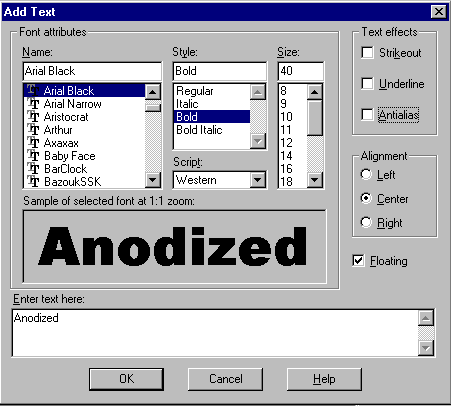
- Select the font and size you want. I selected Arial Black, Bold and a 40 Pitch. Make sure that Center and Floating are checked. Type in some text and select OK (do not deselect the text during this tutorial).

Step #3
- Go to the Color Palette and select the color you want the text to be. Make the Foreground color the lighter of the two as this is the one that will be used to apply the Hot Wax I used two shades of blue Hue=144 Saturation=255 Light=161 for the foreground and Hue=170 Saturation=255 Light=160.

- From the Menu Bar select Image, Effects, CutOut.
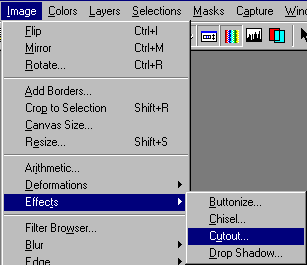
- Make sure Fill interior with color is not checked.
- Set the Shadow Color to Foreground, Opacity to 100, Blur at 15.
- Set the Vertical and Horizontal to 2.

- Go back and repeat the same steps except change the Shadow Color to Background and the Vertical and Horizontal to -2 (negative 2). Your image should look something like the one below.

Step #4
- On the Menu Bar select Selection, Modify and Feather

- Set the Feather at four (4).

You should now be looking at the following.

Step #5
- We are now ready to add some real color to the text. Go to the Menu Bar and select Image, Other, Hot Wax

Now you should see a difference.

Step #5
Almost finished
- Back to the Menu Bar and select Image, Sharpen, Sharpen More.

- Apply this effect three times or till you get the effect you desire.
- Deselect the text and save it to your web graphics directory.

You can add drop shadow to your text prior to deselecting it. If you wish to do so and have already deselected it that is no problem. Simply go up to the Undo Tool on the Tool Bar 
Try using some different colors, two shades of red work nicely.
Return to Text Effects
|
